
Appearance
Quotation
The Quotation module in the Sales plugin of AureusERP allows users to draft, manage, and convert quotations into sales orders. A quotation serves as a preliminary offer sent to the customer detailing product pricing, terms, and delivery conditions. This guide walks you through creating a quotation, managing its sections, and following its lifecycle.
Quotation Creation
Steps to Create a New Quotation
- Navigate to
Sales → Orders → Quotations → New Quotationas shown in the below image.
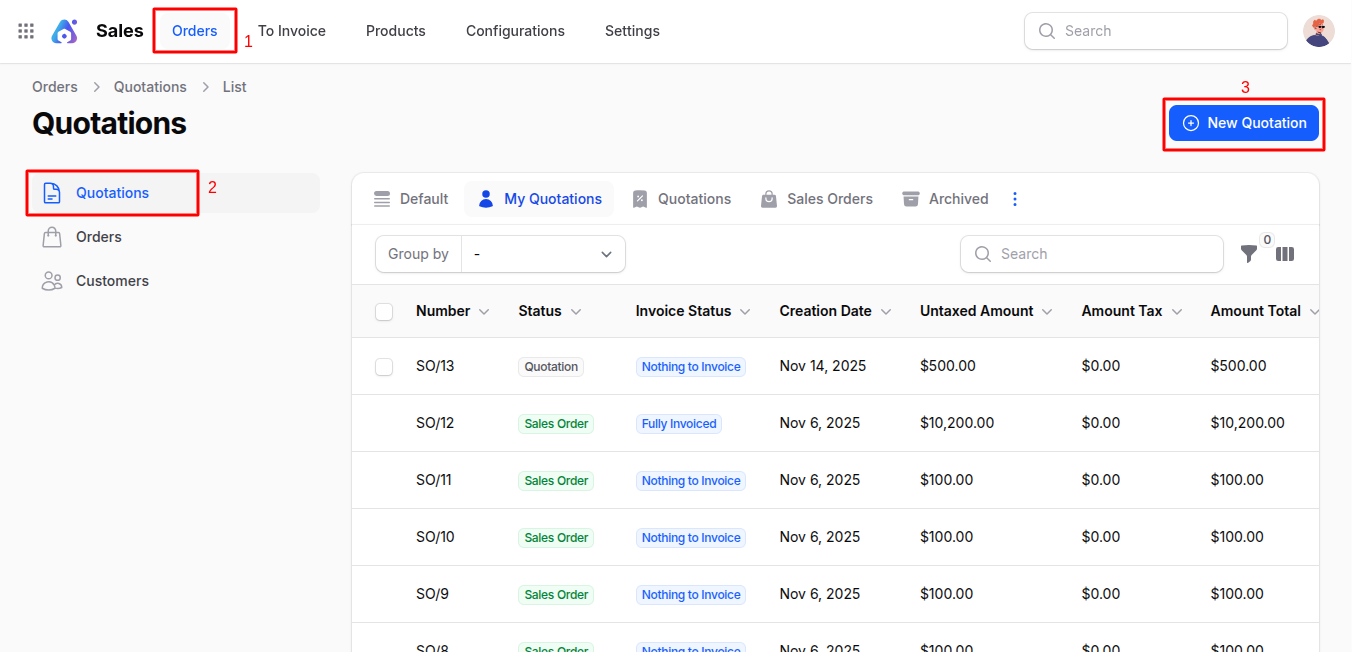
Filling up fields as per the section defeind below :
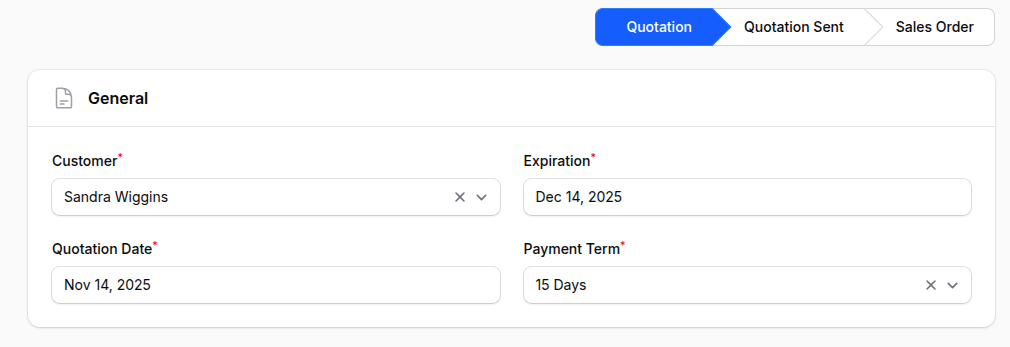
General Section
- Customer: Select the customer to whom the quotation is issued.
- Expiration Quotation Date: Set the date after which the quotation will no longer be valid.
- Payment Term: Define the terms under which the customer must pay (e.g., Net 30, Immediate).
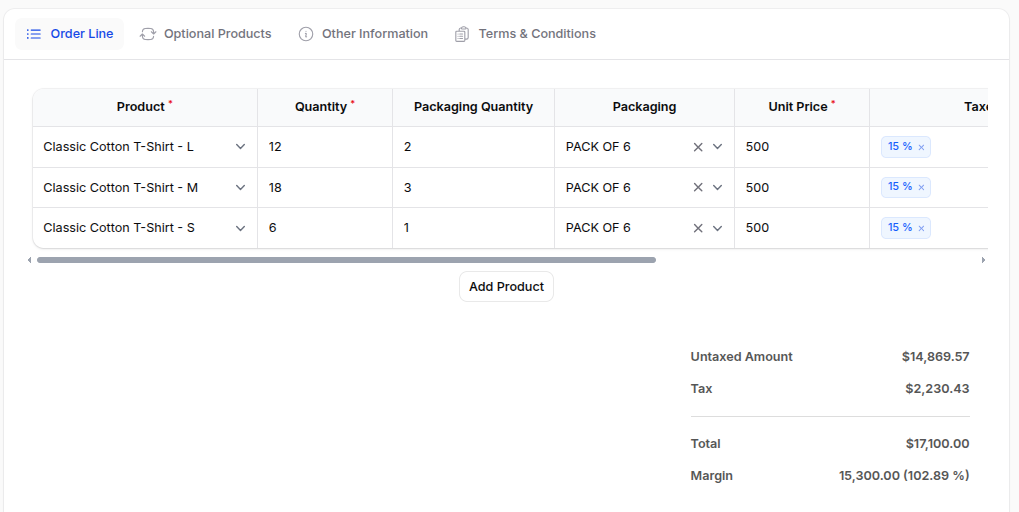
Order Line
Click on Add Product to open fields related to product selection.
- Product: Choose applicable product variant options.
- Quantity: Enter how many units the customer wants.
- Unit of Measure: Choose the unit (e.g., Dozen, Units).
- Lead Time: Estimated time to fulfill the order.
- Packaging Quantity: Number of items per package.
- Packaging Unit: Define the packaging type or unit.
- Unit Price: Price per unit of product.
- Margin: Profit margin in absolute value.
- Margin (%): Profit margin percentage.
- Taxes: Select applicable tax groups.
- Discount (%): Discount on the line item.
- Amount: Auto-calculated total after applying taxes and discounts.
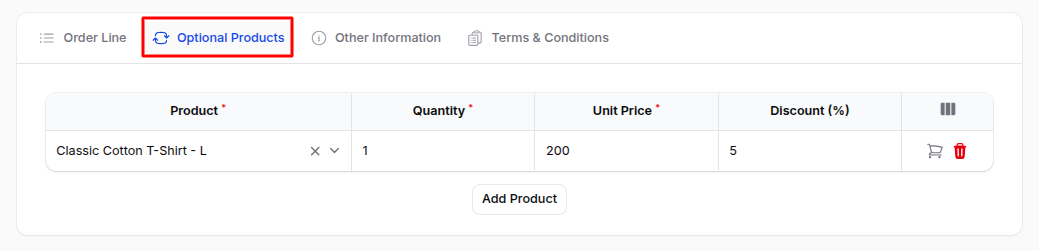
Optional Products
- Product: Choose an optional upsell/cross-sell product.
- Description: Provide a brief description.
- Quantity: Specify number of units.
- Unit of Measure: Unit like Dozen, Units.
- Unit Price: Sale price per unit.
- Discount (%): Any promotional or negotiated discount.
Other Information
Sales Subsection
- Sales Person: Assign internal user responsible for the sale.
- Customer Reference: Reference number given by the customer.
- Tags: Useful for filtering and classification.
Shipping Subsection
- Delivery Date: Expected shipment/delivery date.
Tracking Subsection
- Source Document: Reference to any linked internal document.
- Campaign: Select a marketing campaign.
- Medium: Indicate the communication medium (e.g., Email, Web).
- Source: Source of the lead or order (e.g., AdWords, Facebook).
Additional Information Subsection
- Company: If you operate in multi-company mode, select the company issuing the quotation.
- Currency: Choose the currency for the quotation. (Default: USD)
<ImagePopup src="/images1/sales/invoice_create_other_1.png" alt="Create Invoice" />
Action Buttons
At the bottom of the form, you will find:
- Create: Saves and creates the quotation.
- Create & Create Another: Saves current quotation and opens a new quotation form.
- Cancel: Discards the changes and exits the quotation creation screen.
After Quotation Creation
Click Create to save and navigate to the Edit Quotation page.
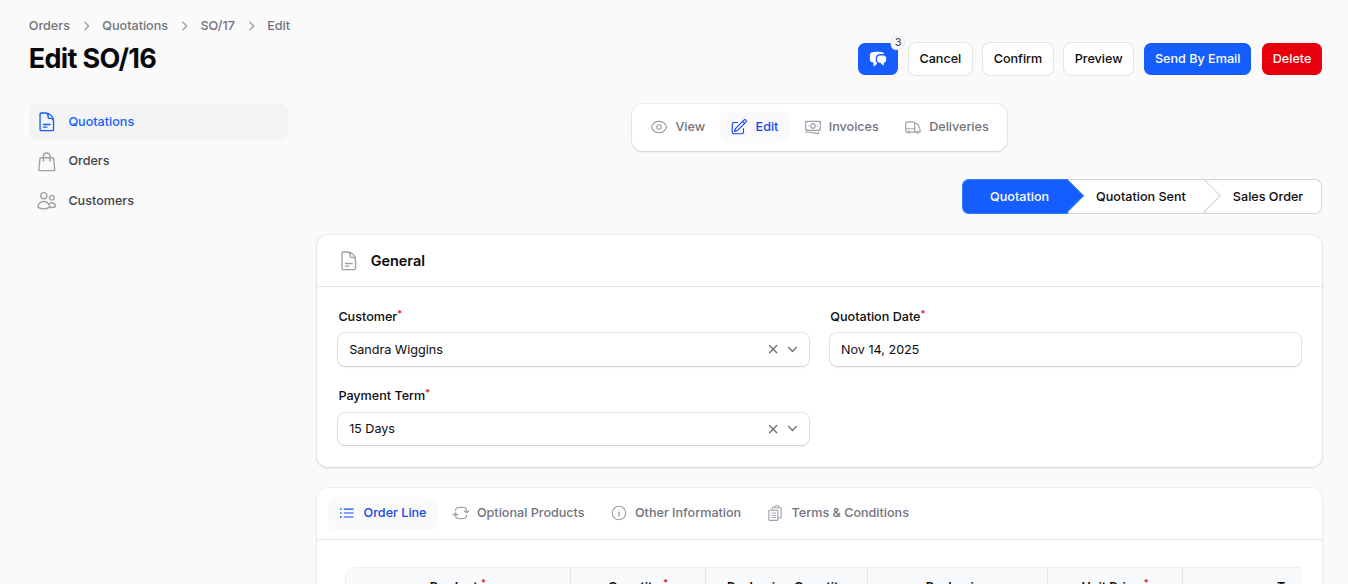
Available Actions on View Page:
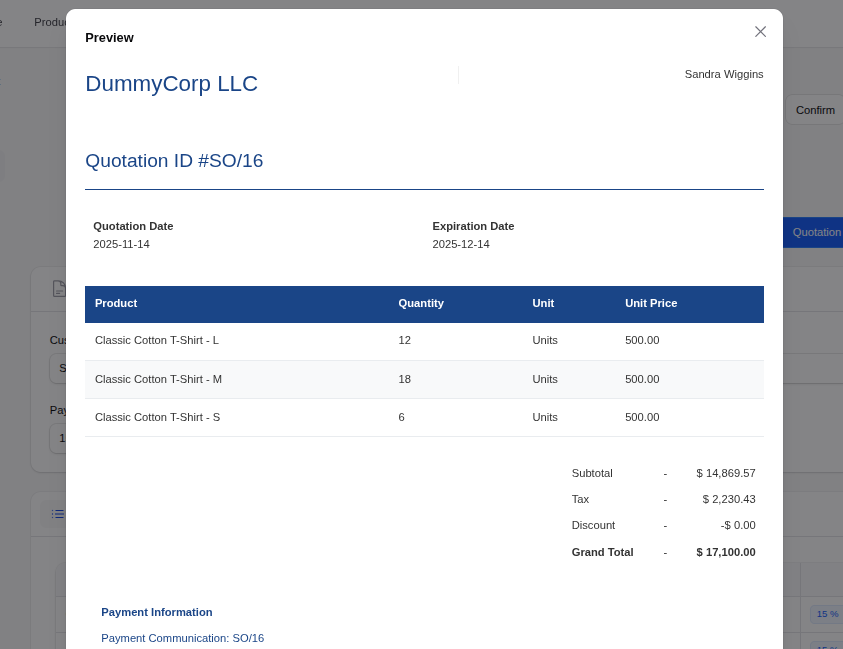
Preview: View a PDF/print-friendly version.
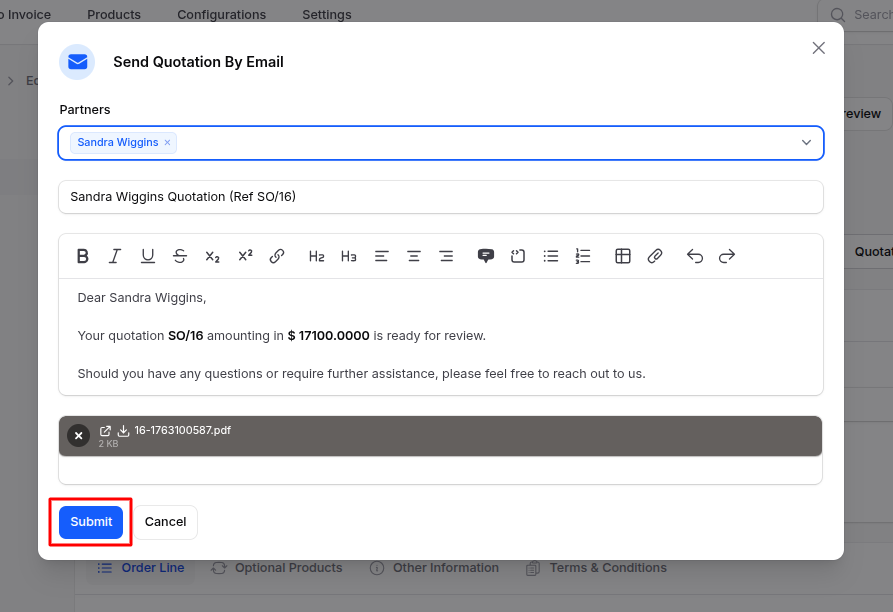
Send by Email: Opens email composer to send the quotation to the customer.
Confirm: Turn the quotation into a Sales Order.
Cancel: Mark the quotation as void.
Delete: Permanently remove the quotation.
🛈 At this point, the document is still a draft and not yet a confirmed sale.
After Confirming Quotation
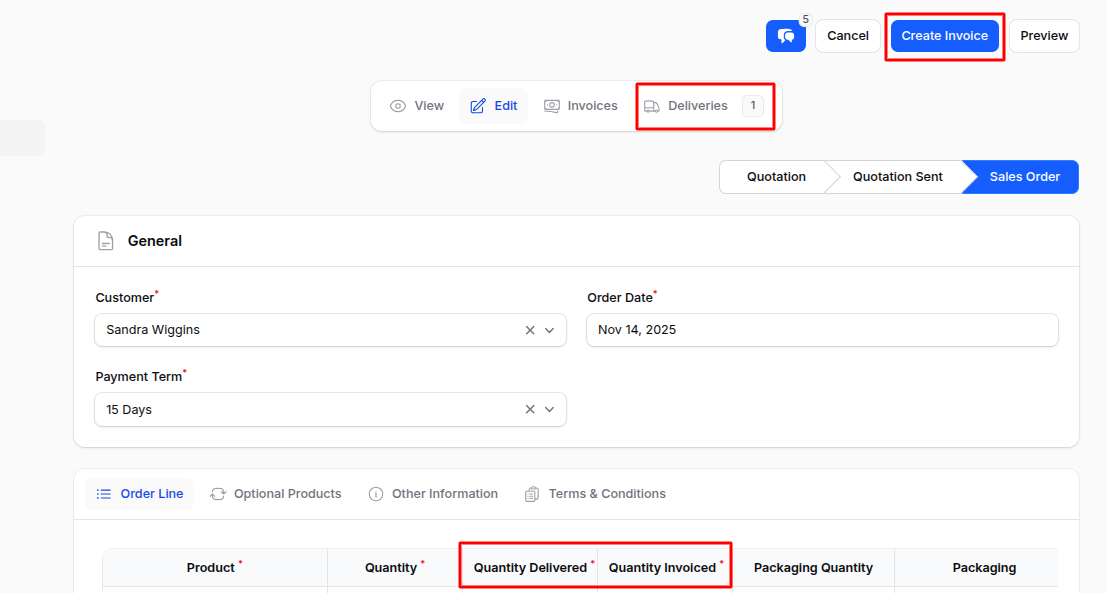
When you click Confirm, the status changes from Quotation to Sales Order, and you are redirected to the Edit Order page.
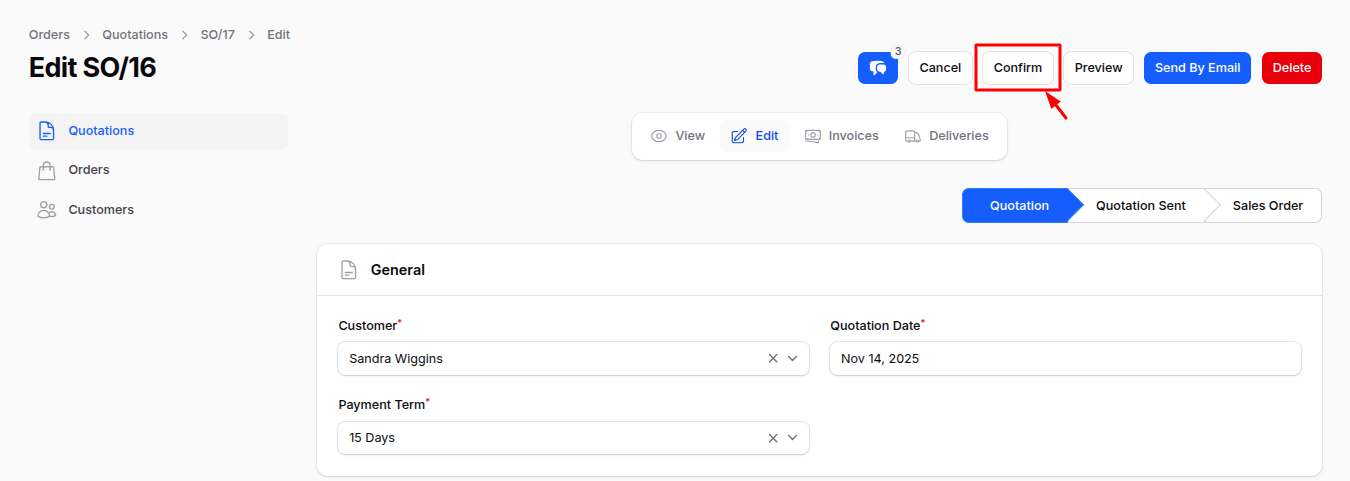
What Happens on Confirmation:
- Triggers Delivery: For stockable products, a delivery order is generated.
- Create Invoice: If the invoice policy is set to "Ordered Quantities", an invoice can be created immediately.
- Colomn Updates: New columns appear in the order lines:
- Quantity Delivered: Shows how many units have been shipped.
- Quantity Invoiced: Shows how many units have been invoiced.
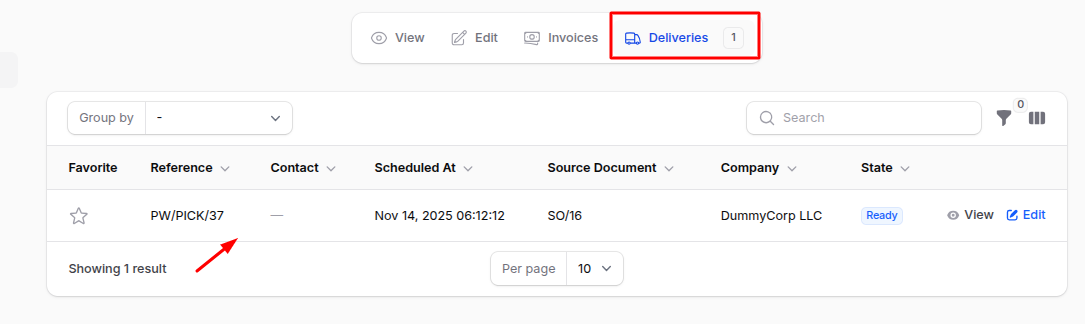
Delivery Management (Optional if Product is Stockable)
Navigate to the Delivery tab.
Confirm Picking: Confirm items to be picked from inventory.
Validate Delivery: Validate that products have been shipped.
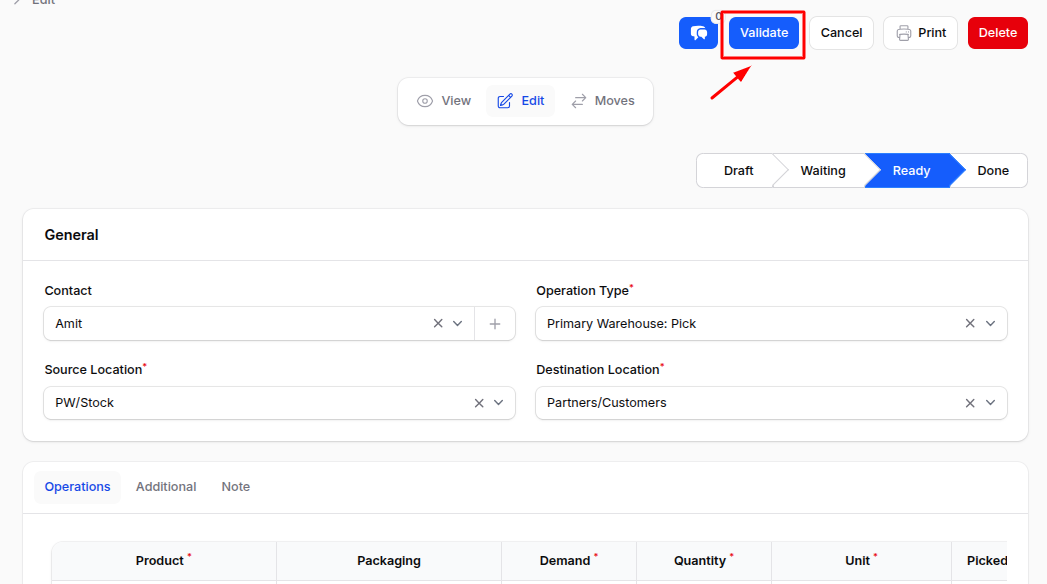
🛈 Stock is reserved and reduced from inventory automatically.
Invoice Generation
- Click Create Invoice to generate an invoice.
- If the invoice policy is
Ordered Quantities, invoices can be created immediately upon order confirmation. - If the invoice policy is
Delivered Quantities, the invoice can only be created after delivery validation.
- If the invoice policy is
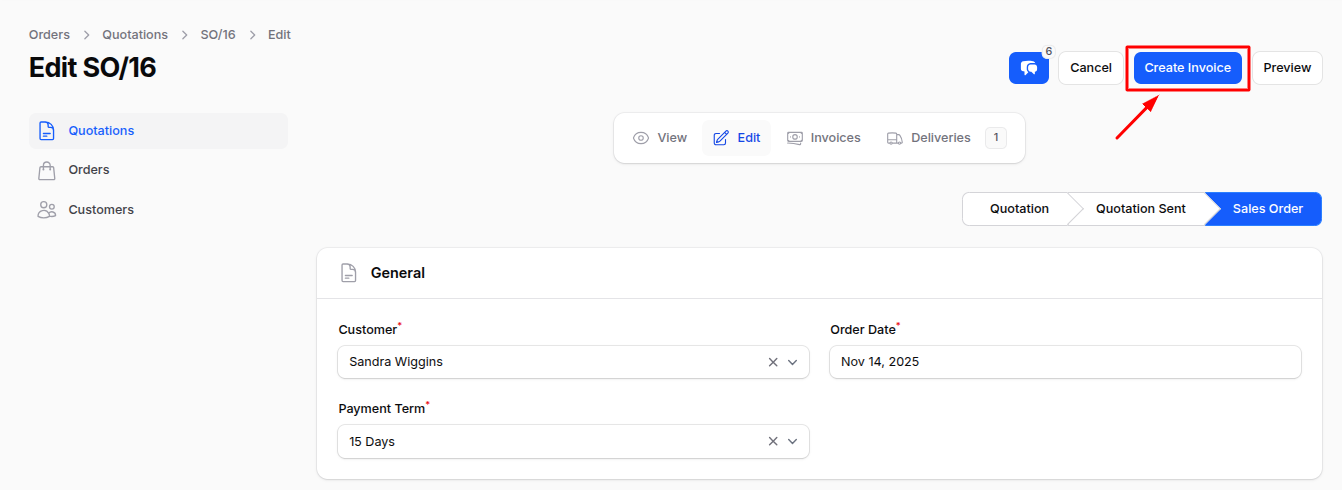
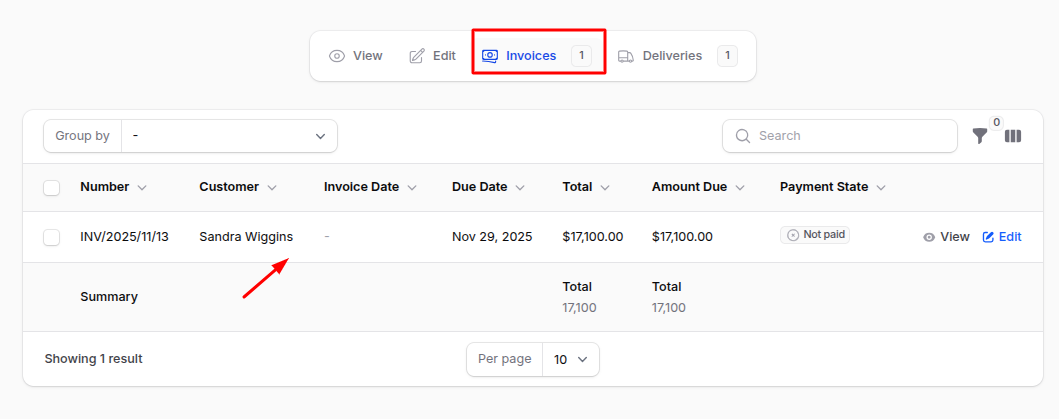
- Navigate to the Invoice tab.
🛈 You can generate, send, and register payment directly from the invoice page.
Flow Summary
sh
Quotation (Draft)
    ↓
Confirm Sale
    ↓
Sales Order (Confirmed)
    ↓
Delivery Order (If products require shipping)
    ↓
Create Invoice
    ↓
Send Invoice / Register Payment
    ↓
Sale Completed
This is the complete quotation lifecycle in the Sales plugin of AureusERP, enabling seamless order fulfillment from quote to payment.
Summary
This guide completes the Quotation creation process in AureusERP, enabling seamless conversion of customer quotations into actionable sales.